“Yes, ma’am” – being helpful in the hills with CoMaps

What do you say to a forceful grandma who wants to know the way to the top?

On a recent bank holiday we set off early to walk one of the more popular routes in the Lake District around Rydal Water starting from Pelter Bridge. We arrived to take the last space.

Once parked I went off to pay at the machine where I was met by a man who asked if I knew the area. Being a helpful sole I said that I did, expecting to be asked something simple like “how do we get to the lake?” He wasn’t dressed like a seasoned walker, his children were in trainers.

He waved over a short, steely-eyed, in-charge lady who I assumed was the man’s mother. She fixed me with a stare and addressed me as if I was one of her children. Her diminutive unflinching presence was such that I regressed to my childhood and responded accordingly. On this occasion the resolute request was to help them find the route to the top of log-her-igg. It took me a little while to realise that what was being requested was the route to the top of Loughrigg Fell (it’s pronounced with a “uf” like rough.)

While Loughrigg Fell isn’t overly challenging as a hill there are numerous options for ascending from Pelter Bridge, however the main, tourist, path is at the other end of Rydal Water going up from Loughrigg Terrace.

I don’t mind being helpful but I’ve become a bit reticent about giving people who look unprepared too much information. I don’t want to be the one who gives them enough information to get themselves into deep trouble.

The Loughrigg Terrace path requires no navigational skills but was a couple of miles away and I wasn’t convinced that the younger children in the family group would enjoy such an adventure. They’d already struggled to get parked and I wasn’t going to propose to the small, steely-eyed, in-charge lady that they tried their luck at the car parks at the other end of the lake.

The lady, who I assume was grandma of this three generation family, was most insistent that people wanted to go to the top and then on to the caves. I suspect that they didn’t have too much choice, she was the one making the plans and the family would know not to meddle. I explained that the way to the top was via the cave, that you went there first, but that they needed a map. Grandma gave me several disapproving looks and I knew she was expecting more from me. One of the other adults talked about wanting to go for a swim which she ignored. I showed them on the map on my phone the route that we would be taking and the main route to the top, we also chatted about good places to swim, but the conversation still made me nervous.

There’s very limited signal at Pelter Bridge and the nearest thing they had to a navigational aid was Google Maps on various phones. If you’ve tried to use Google Maps for walking in the Lake District you’ll know that it’s really not something you should be relying on.

As I left them I hoped that they’d stick to the low level route, take the walk to the caves and then enjoy a swim. There wasn’t much risk in any of that, but I did wonder what might have happened if they had tried to venture to the top. Would grandma get her way? Would they get lost in the numerous path and come down somewhere near Elterwater? Or perhaps, unexpectedly in Ambleside?

The family started their walk and shortly after we followed along behind them. At the first fork in the path they stopped, looked at their phones and at each other. By this point we had caught up with them so I showed them the path to the caves which I hope they took, we continued on our way while they made their decision..

Would it have been better if I could have shared a navigational aid with them? Something more useful than Google Maps? It’s not realistic to expect people to download one of the paid options for a one-off activity, an outlay that they may never use again. I’m not sure I would advise the use of OS Maps even if they were willing to spend the money and my preferred app Outdoors GPS requires a reasonable level of map reading skills.

Later on in the walk I remembered a post that a former colleague had written about successfully using CoMaps in the Lake District on a recent trip, with the added advantage that it’s free. I decided to give it a go for the rest of our walk.

The mobile signal in the Lakes is patchy, not nonexistent. Not much further along I had enough signal to download the app, it automatically prompted me for permission to download the offline content for the area and we were off. The only adjustment I needed to make was to change from the dark to light theme on a very bright day. The mapping was excellent, the offline experience good and the data from OpenStreetMap was accurate for my very limited sample. Most people have enough mobile data allowance to download an app and a few MB of maps.

CoMaps would have given me an option for how to advise grandma and the car park family. I’m definitely not going to use it on every occasion, I’m not even sure I would have told the family, but I can definitely see times when it’s a better answer than sending them on their way blind.

All I need to do now is to work out the best way of combining CoMaps with my Walking Guides. I think the first step is going to be to upload some of the GPX files as Tracks in CoMaps; I can then share app, and tracks.

Header Image: It wouldn’t be the same without a visit to Rydal caves.
“You did what?” I switching to a MacBook as my ‘home’ laptop

The joys and frustrations of retraining myself to use a MacBook after decades as a Windows person.

For personal reasons it became an opportune time to refresh the device that I use for ‘home’ and for the first time I chose an Apple MacBook.

You did what?

There are people for whom the choice between Windows and Mac is almost a religious one, I’m a bit more pragmatic than that, I want what makes me productive.

A long time ago there were the famous and celebrated Get a Mac adverts which pitched PC v Mac, these adverts had the opposite effect on me and pushed me away from the Mac.

For most of my working career I have been a Microsoft Windows user, before that I was a DOS, VMS, UNIX and MVS user. If you don’t know what most of those acronyms mean, then don’t worry about it all they indicate is that I have been using Windows for about as long as it has existed.

In many ways, Windows is how I think when I look at a screen.

My ‘smart’ mobile life, however, has been almost exclusively Apple iPhone and iPad. Again, there was a time before the iPhone when I spent a lot of my life bashing away on a Blackberry Keyboard, but that’s a different history.

For the last couple of years, I’ve also been an Apple Watch wearer. So even further into the Apple ecosystem.

My employer is heavily Microsoft Windows, and I don’t see that changing anytime soon, so Windows isn’t going anywhere for much of my life.

I considered not having a “home” laptop at all, after all surely I can do everything I need to do on an iPad? Why do I even need a full-fat operating system?

Decisions are always a mixture of logic and feelings; in this case it was the feelings that won. There really wasn’t a deal breaker with any of the options I was considering, there were some things I really liked about the MacBook, so I purchased a MacBook.

Impressions so far

My first concern was how long it would take me to become productive.

So much of what we do on our devices has become instinctive, we don’t really think our way through the menu options or the keyboard shortcuts, we just use them when we need them. I have developed a way of working in Windows that I think is efficient, would the MacOS get in the way of that?

There has been some frustration along the way, but for the most part things are working quite well.

Thankfully I’ve not had to replace any apps, what I use is either available on both Windows and Mac, or I already prefer the Apple version from my iPhone.

Some time ago I switched to a desk setup that made use of a USB-C switch the connected to a suitable power supply for my work Windows Laptop, peripherals, monitor, etc. I was delighted when I first plugged my MacBook into this set-up and everything just worked.

It took me less than a half a day to get to a working setup that gave me 80% to 90% of what I needed to be productive.

I’ve found most of the interface changes easy to get used to, even the closing of a window which is in the opposite corner for a Windows person.

Further Joys

I might be giving up on Windows for personal use, but I’m not giving up on Office just yet. I use OneDrive for storage, my email is in Outlook, I’m used to using Excel, Word and PowerPoint. In the past Office on Mac was clunky and didn’t really feel like it was either Office or a truly Mac. From my experience so far those days are thankfully behind us.

I’m a big keyboard-shortcut user and for the most part these are the same between Mac and Windows, although some of the keys are in different places. The basic set using the same letters – cut (command+x), copy (command+c), paste (command+v), undo (command+z), select all (command+a).

Before I purchased the MacBook several people raved about the Apple processors and the amazing battery life that this enabled. So far, I agree with them wholeheartedly. I’ve been working away from home for a few days this week and several times a day I’m having to find power for my work HP Z-Book, but the MacBook that I’ve used almost as much is still sitting at 70% battery. I didn’t think that the battery issue was one that would really impact me, but I’ve been surprised by how much I’ve noticed it, or rather, not noticed it, I just assume that the MacBook has power.

I am loving the ecosystem integrations. Having photos on my MacBook is brilliant, when I write the Graham’s Guides having the photos there, on a map, is excellent. Not having to switch to my iPhone to send a message is another one.

I am privileged to have a Windows laptop with a camera that supports Windows Hello for authentication, something that just works. I wasn’t looking forward to using the fingerprint reader on the MacBook, but little did I know that Apple had built in Apple Watch proximity recognition so for most of the time I don’t need to.

The physical build quality of the MacBook is so good.

Some Frustrations

My primary annoyance is that some keys are in different places, the main one being the swap of the @ and the .

The other strange one that keeps interrupting my flow is the position of the command key in comparison to the ctrl key on Windows keyboards. I’m still having to look down to find the command key, finding the ctrl key on Windows is still second-nature.

I do miss the home key and the end key; it’s taking me a long time to make the mental shift to command+right-arrow and command+left-arrow. This is particularly irksome when I use an external keyboard that also has a home and end key that both do something very different to their function on Windows.

Another key I miss is the Windows key as a rapid way to access the Windows Start screen. I quite regularly start applications by pressing the Windows key and typing the name of the app. Spotlight via Command-Space is another mental shift I haven’t yet got used to.

Mouse scroll direction is another interesting one. When I sit at a desk, I like to use an external keyboard and an ergonomic mouse. The mouse has a scroll wheel – the default scroll on the MacBook is in the opposite direction to Windows. I can change this, but I haven’t yet decided whether I want to, I don’t want to be one of those people who buy a Mac and set it up to work like Windows. I’ve also toyed with the idea of changing the direction on my Windows setup.

When I am working on multiple screens, I would love the Mac Dock to be visible on all of them, that’s a personal preference I know, but seems like such an obvious thing to do. The option to automatically hide and show the Dock goes part way there and may become my option of choice.

Yet to be Fully Explored

I can’t honestly say that I’ve properly explored the capabilities of the MacBook trackpad. I’ve never been a huge fan of any of the trackpad technologies, even on Windows, so I’ve got some way to go before I can honestly say I’m proficient.

I like the way on Windows that you can navigate to the window that you want from the taskbar, control+click on the app icon in the Dock doesn’t yet feel as intuitive.

The Apple Watch recognition works most of the time, but sometimes it doesn’t and then I need to enter my password. I’m not sure why this is; the cause doesn’t seem clear.

Finder and the way it’s structured still feels a bit strange, I’m not even sure I know what it is, but something makes me wary of it. One little example is the file save dialogue in applications, on Windows it seems obvious how to create a new folder, this isn’t obvious to me on the MacBook.

Other Oddities

I have a Bluetooth keyboard and ergonomic mouse that support multiple connections. I’ve used this combination to support both my work and home laptops at the same time on my desk. This makes for relatively easy switching from device-to-device, I say “relatively” because the keyboard switch is very easy having physical keys dedicated to the different input, the mouse also has a button to switch, but it’s tiny and it’s on the base of the device. Having to pick up the mouse and press a tiny button only takes a few seconds, but the fact that it’s a two-handed operation makes it feel like an utter faff. I suspect that there is a combination of keys on the mouse that will do the switch, but the manual for this model doesn’t mention one. I may have to investigate an alternative; I’ve had this mouse a long while.

This blog, and others, was first written in Typora, a markdown editor, the license nicely includes the ability to run more than one device. I was really pleased to experience that the Typora app on the MacBook is just as good as the Windows version and I can run both at the same time.

Concluding

I’m very happy with my purchase; the joys are outshining the frustrations. There is certainly some confirmation bias in this statement, but it would be a strange situation if there wasn’t. There isn’t any buyers remorse.

Header Image: This is Crummock Water on a glorious day just before we went for a swim. Crummock can get quite busy in places, but it can also be gloriously tranquil if you know where to look.

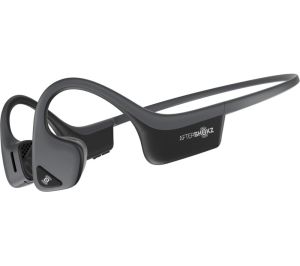
My Tools: AfterShockz Trekz Air – Bone Conduction Headphones

I was recently in a conversation about listening to audiobooks and the headphones that I wear. I was quite sure that I had already written a post about the headphones that I’ve worn for a couple of years, having checked it appears not, so here it is.

I like walking.

Several mornings a week I walk for at least an hour before work. I regularly walk further on a weekend. Most of the time I walk alone, apart from the company of an audiobook, or a podcast. Sometimes I listen to music, but that’s not very often. I prefer to get lost in a story or the narrative of a good podcast.

I have tried many headphones for this situation over many years, but none of them have come close to the AfterShokz Trekz Air. While other headsets may have given better audio quality, none of them come close to being the complete package of these bone conductive headsets.

Aftershokz Trakz Air

Bone conductive headsets don’t go into your ear at all, they vibrate the bone of your scull. They do this by placing what is effectively a small speaker on to the bone just in front of the middle of your ears by using an over-ear headband. If that sound weird, it isn’t, you hear the sound just like you hear all sound and you don’t feel anything. It turns out that you do a lot of hearing through these bone normally. The first time I put them on the only strange thing was how normal it was. The second time I adorned them I didn’t even think about it.

From my perspective these are the things that make AfterShokz so good:

  • Ambient sound – because my ears remain open the AfterShokz don’t block out any of the sound around me. Whilst out walking this is not only a safety issue, it also allow me to remain alert to the sounds of the day, including the activities of the local wildlife.
  • Waterproof – they perform brilliantly in any weather I don’t have to worry about them becoming damaged.
  • Comfortable, even with glasses – once I put these headphones on, I soon forget that I am wearing them. I wear glasses and the over-ear design is thin enough that it remains comfortable.
  • Steady – these headsets stay in place wherever and whenever. I’ve tried all sorts of in-ear headphones, but they all work their way out eventually and I spend part of my day putting them back in. When I am all gloved up in a snowstorm on a mountain rearranging my audio is that last thing I want to do.
  • Hood compatible – I quite like walking whilst wearing a hood in the wind and rain. The AfterShokz works really well in this situation staying in place and not requiring any adjusting. Some of this is down to the excellent hood that I have on my walking coat.
  • Simply work – I use these headphones with an iPhone and the integration is seamless. Turn them on and they connect every time. The buttons are responsive and easy to use.
  • Long battery life – I can walk all day and the Trekz have never run out of juice if they were charged. The power is so good that I sometimes forget to charge them, and they have run out in that situation. Having said that I owned them for several months before that happened. When it did happen, I was out walking and near to the top of a mountain when I heard an unexpected voice. It took me a little while to realise that it was the headphones asking, “charge me”.
  • Excellent support – the pair I currently have are my second ones. The previous ones stopped working in one ear (or should that be cheek?). A short phone call with the support team and a replacement arrived in a couple of days.
  • Built in microphone – the inbuilt microphone is useful if I want to make or receive a call whilst I am out walking, but I generally don’t want to, I’m out walking to disconnect.
  • Robust – these headphones have done a lot of miles in some inhospitable conditions. They’ve been dumped into backpacks, coat pockets, laptop bags and still look as good as they did when I got them. I don’t have to treat them like delicate electronics. They come with a protective case, but I’m not good at that kind of care.

There are a couple of times where the AfterShokz don’t work so well, just for a little balance:

  • Noisy roadsides – sometimes high-volume roadsides are unavoidable. In this context bone conductive headphones can struggle to compete with the ambient sound. I try to avoid these situations so it’s not too much of an issue but just this morning I cross eight lanes of the M6 via a footbridge and paused the audio part way across. Pausing the audio is a single easily accessed button on one cheek so that’s not too difficult a thing to do.
  • High winds – like noisy roads, high winds can make it difficult to hear. This is often fixed by the wearing of a good hood. AfterShokz do provide earplugs with the headphones to help block out the ambient sound, but I never saw the point of these.
  • USB Plug – I have several USB cables on which the plug isn’t long enough to charge the Trekz, it’s only a millimetre or so, but it makes a difference. To compensate for this, I have the cable that was supplied with the headphones plugged in to my charging block. I never have to use it more than once a week and it’s on my desk where I work, so not a hassle at all.

In conclusion, I am a big fan. If these ones broke I wouldn’t think twice about getting another pair, but I’m not expecting that any time soon.

Header Image: A windy wet day, with my hood up, on a local hill called Clougha Pike. These sculptures are by Andy Goldworthy and there is some debate about their name. It’s difficult, where they are located, to take a picture which gives you a good scale perspective, so it might be helpful to know that you can stand inside the pobs and there’s a step to help you.

Running in Dark Mode all Day

It’s likely that most of the apps that you use have a white (or light) background with black (or dark) text. It’s also likely that the operating system capabilities that you use also has this configuration.

This is the default after all and why would you change it?

You may have gone to the effort of changing the colour scheme a little, but it’s probably still got a light background and dark text.

I’ve recently taken the step of reversing this on many apps and some operating systems as a bit of an experiment. My screen world is now predominantly dark – dark background with light text.

Why? There are a few reasons, but mostly it’s about personal taste and visual preferences:

  • Eye Fatigue – When you are looking into a screen you are looking into a light. It may only be a low intensity light, but it’s still a light. Using dark mode reduces the amount of light and hence, hopefully, the levels of eye fatigue. Some people claim a scientific justification for this, but the research I could find was quite limited. I find it easier on the eye and that’s good enough for me.
  • Reduced Blue Light – Of the light that your screen is emitting the blue light is probably the most destructive. It’s thought that this type of light impacts our ability to sleep, and that we should reduce the amount of blue light before we go to bed. My logic goes like this, if I don’t need it in the evening, why would I need more of it than my surroundings are providing it in the daytime?
  • Readability – This is a subjective one, I find light text on a dark background easier to read.
  • Reduced Distraction – Using dark mode reduces the intensity of many of the interface elements. Things like window borders and app icons are not as highlighted and hence grab less attention. At the same time, the elements that I am working on – the words and diagrams – stand out more and draw my attention.
  • Reduced Power Consumption – This is a tenuous one, dark mode uses slightly less power to light the screen and hence it improves battery life on a device. I suspect that the difference here is marginal, but what it has allowed me to do is to lower the light levels on my iPhone extending the battery life by a little.

There are some drawbacks though:

  • It’s not the Default – Because Dark Mode isn’t the default for operating systems or for applications, you have to choose it. My experience has been that some applications will take the preference from the operating system, but not all of them will. Some apps provide an option which you then have to find.
  • Web Sites – The real challenge is web sites, it takes far too much effort to switch over to dark mode in each of these. I’ve tried a few plug-ins for browsers, but have concluded that the glitches are worse than just letting the web sites display in light mode.
  • Mixed Mode – Because it’s not the default it’s not always possible to work in dark mode in every application, and certainly not on every web site. The challenge with this is that you then get the rather jarring experience of switching between an app that is in dark mode and another that it in light mode. On balance, though, I think I prefer this experience to the default one. I’d call myself a lightweight dark mode user.
  • iOS Dark Mode – My primary smartphone is an iPhone. The iOS interface doesn’t really have a dark mode. You can use the accessibility features to invert the colours which is supposed to be smart enough to only invert the colours of the text, but it also has an annoying habit of inverting the colours of all of the images. Having said that, once you switch apps to dark mode it’s surprising to realise how little of the actual iOS interface you see day to day. Yesterday, Apple announced that iOS 13 will have a dark mode.

All I need, now, is for each of the apps that I use to give me the option to change, or better still, to take the default settings from the operating system. I suspect that web sites are always going to be, by default, in light mode, but perhaps a time is coming when they will pick up the correct mode from the browser that is being used.

As part of this experiment I’ve switched this web site over to a dark colour scheme and even there I’ve had some glitches to deal with, some of which still aren’t resolved.

Many people see dark mode as a way of making the nighttime visual experience better, but I’ve been using dark mode all day every day. I started this as an experiment a few weeks ago, I wasn’t expecting it to make much difference, but it has made a far greater difference than I was expecting.

I’m not advocating that everyone moves because I think that it’s primarily an issue of personal preference, but you might like to give it a try.

Header Image: This is Traigh a Bhaigh, Vatersay in the Outer Hebrides. Apparently this is how you park a boat around here.

My Tools: Microsoft To-Do

My productivity regime is an example of continuous learning. It doesn’t stay the same for very long and is regularly changed a bit here and there. Within my productivity practices task management has been an area in need of improvement for some time as the working context has changed.

There was a time when I could use my inbox as my list of outstanding activities, but that’s no longer the case as activities get assigned to me in various different ways and from different tools.

I have tried for a little while managing my tasks in each of the various tools, but that become cumbersome. I also tried various methods of copying activity descriptions to a central tool and then working there, the problem with this was that I still needed to keep the various sources synchronised as the status and priority changes.

The latest incarnation of my tasks management activities utilises Microsoft To-Do. I looked at To-Do when it was first launched because I’ve previously used Wunderlist, which Microsoft purchased. In those early days I couldn’t see what I was getting and it was all a bit rudimentary, I expected this to changed, but it didn’t change for what seemed like a very long time.

Recently though, To-Do has hit the accelerator on useful capabilities and my use of it has increased significantly.

The two main features that have made the difference being:

  • Flagged email – Emails that I flag in Outlook get automatically replicated into a folder in To-Do where I can work on them and flag them as completed. This is a two-way synchronisation – if it’s flagged complete in To-Do it’s flagged complete in Outlook and vice versa.
  • Assigned to Me – if a task is assigned to me in Planner it also appears in To-Do. Again this is a two-way synchronisation.

The activities that I place directly into To-Do are also synchronised into Outlook Tasks, but I don’t think that this has had a significant impact on my productivity because I’ve never managed my Tasks in Outlook Tasks and don’t think I’m going to start.

Assigned and Flagged in Microsoft To-Do

I have always flagged emails in Outlook as a way of sorting through the dross to find the things requiring my attention. The task of Flagging an email is done via an Outlook Quick Step which also moves the email into a separate folder and marks it as read. I have another Quick Step that moves emails that require no action to a different folder and marks them as read. These are both assigned a keyboard shortcut so that I can progress through my inbox without leaving the keyboard.

Now that tasks from emails, tasks from Planner and my own defined tasks are in To-Do I’ve found myself using To-Do as the mechanism for planning my day, adding and removing things from the My Day plan. My daily plan still takes place on a piece of paper, but that’s because my daily plan isn’t just about tasks. The tasks are increasingly managed in To-Do.

This still isn’t an absolutely ideal situation because I also get assigned activities via a Jira corporate project management capability, but it’s a lot better than it used to be. Perhaps I should raise a suggestion for the To-Do team to work with Atlassion on that.

Looking forward to what new capabilities the To-Do team have for us.

How weatherproof are your headphones?

On the 28th August 2018 I went out for a walk in the mountains of the Lake District. It was a glorious day of contemplation and enlightenment, and quite a lot of water. When I returned home I was unpacking my somewhat wet equipment and getting out of damp clothes when I noticed that my Anker Bluetooth Headphones were missing. I’d definitely had them on my walk because I’d listened to part of an audio-book on them. How frustrating. I like these headphones because they are light, have good battery life and are supposed to be waterproof which I’d tested a bit and it seemed to be the case, but I’d not gone swimming in them or anything like that. But now they were lost. I searched the various nooks and crannies of the car, I searched the many pockets of my rucksack, but no headphones. I even checked the many pockets of my walking trousers and waterproof coat, several times! A eventually came to the conclusion that they must have fallen out of a pocket, or the car, probably in the car park near Thirlmere. Today on the 29th September – a month later – and just to show how often I do gardening, I found the headphones. They were about a metre from where I get out of my car, laid on some plumb colour slate. They weren’t wholly disguised, not were they very visible, I’d obviously not looked there. But, I did need to look there whilst I was weeding. In the last month we have had rain and wind in the form of storms Ali and Bronagh, as well as the usual English September showers, we’ve even had sunshine and our first mild ground frost. Would these waterproof headphone survive a month laid on the ground outside my house? I’m please to say, absolutely! One of the ears is a little quieter than the other at the moment, but I suspect that may ease as they get dried out a bit. How’s that for resilience? If anything, the biggest impact has been from the sun and bleaching, some of the black isn’t quite as black as I remember it, but they work, and that’s what counts. Anyway, I’m off now to enjoy another audio-book with my headphones on. Hopefully I won’t loose them this time 😀.

My Tools: Evernote for iOS

It’s that time which sometimes happens in our house when we need a few things from the shops. I’m the designated shopper for this trip. We only need a couple so I don’t bother to write down a list. Then a member of the family adds something extra to the list, three things, my brain can cope with that. Oh, but while you are there could you also look for another thing. I’ve now got to four things to remember and I don’t know about you, but four is about my limit. It’s time to make a list.

My daughter’s car is in the garage for some work and she wants me to phone up to see what the progress is. I’m asked to do this because I supposedly know more about what they are about to say, that’s debatable. I know I’ll need the car registration but there’s something about the registration number of this car that means that I can’t remember it consistently.

These are just a couple of examples where I use Evernote for iOS on my iPhone. Back in 2012 I described how I used Evernote as one of my daily productivity tools which it still is (It’s interesting to read how my writing style has changed a bit since then). Evernote has all sorts of information in it having those that information on my iPhone makes them significantly more mobile.

Now is a good time to talk about Evernote for iOS because it’s recently gone through a significant interface overhaul which I must say I approve of. For one thing, making ad-hoc notes like a quick shopping list is much simpler. It’s also much cleaner and easier to read.

This is my All Notes screen from this morning:

20170120_134853000_ios

Creating a new note is as simple as clicking the plus sign at the bottom.

The integrated scanning has also removed the need for Scannable simplifying the workflow of scanning things into Evernote.

I’m not sure there’s much more to say than that:

https://www.youtube.com/watch?v=YQxMg31rJVg

My Tools: Moment – how much do I use my phone?

Most of us are inseparable from our smartphones and spend much of our life gazing into screens small and large. I’ve often wondered how much time I spend looking into my iPhone screen and now I know – a lot.

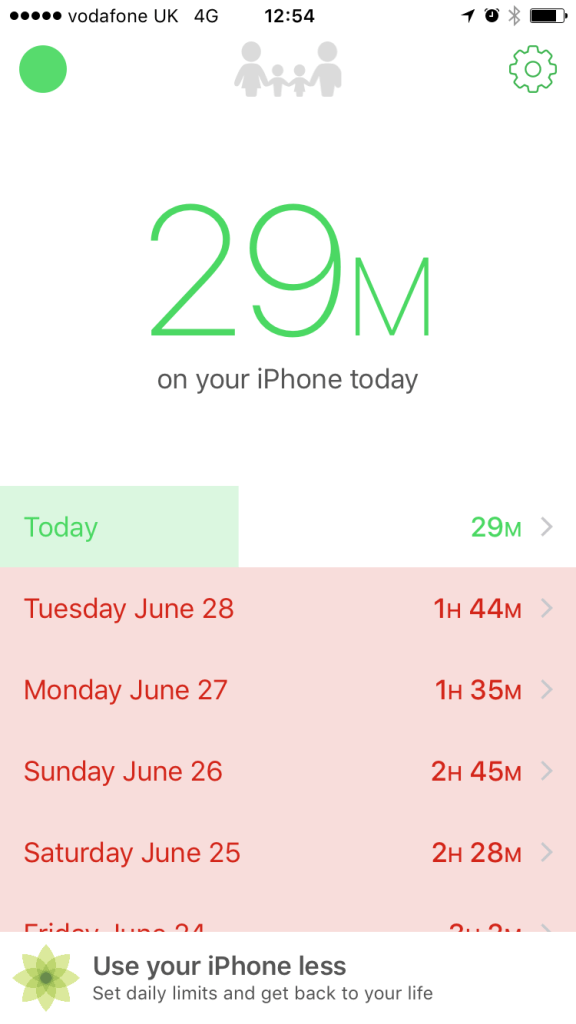
Moment is an iOS application that tracks how much time I am spending on my iPhone and how many times I pick it up.

If you had asked me before running Moment I would have told you that I probably used my iPhone for about an hour a day. You can see from the image below that I use it more than that, especially at a weekend. Much of this time is spent multi-screening when I’m also watching the television, but it’s still a lot of time, particularly as I didn’t think that I watched that much television.

I tend not to wear a watch so I was interested by how many times I pick up my iPhone. The answer appears to be somewhere between 30 and 50 times which is a few times an hour for the waking day (assuming I don’t pick it up in my sleep) which doesn’t seem too unreasonable.

What these image don’t tell you is that I also have an iPhone I use for work, so this isn’t all of my iPhone screen time. I also run Moment on that phone and was surprised by how little I use that phone in a normal working day.

There’s an axiom that says that you have to be able to measure things to manage them. Having measured my iPhone usage I think it’s time to manage it down to a more sensible number. An extra hour a day is a lot of time to recover that could be invested in more useful activities.

You need to leave the application running for it to take measurements, but that doesn’t seem to be a problem. The impact on battery life seems to be minimal also.

20160629_115413000_ios

My Tools: Wunderlist

Managing my tasks my way with a bit of help from technology

Benjamin Franklin once said:

In this world nothing can be said to be certain, except death and taxes.

There’s another things that’s quite certain and that’s lists and in particular to-do lists.

The lists always exist, it’s our choice how we manage them. There are many-many choices for methods of managing to-do lists and a correspondingly long list of applications that support the methods. My personal choice of application for the management of to-do lists is Wunderlist.

I’ve used Wunderlist for a while now and initially chose it because I liked the user interface on my iPhone. Some people are very particular about their to-do lists and adhere to them strictly throughout each day, I’m not very particular. There are two reason for a to-do list as far as I am concerned:

  • To remind me of things I’m likely to forget.
  • To get things out of my head so that I can think about other things.

This means that my to-do list regime is not highly structured.

I have a number of lists and items are placed on those lists as I remember them. The lists are structured around various areas of my life:

  • Work
  • Family and Home
  • Blogging

The items within each list are then prioritised in a very simple structure with the important ones being starred and the time critical ones having a due date defined. The ones with a due date assigned normally also have a reminder defined depending upon how long I need to get the item completed.

Wunderlist allows me to live within this structure and prioritisation regime very easily and that’s why I like it.

As well as the list views Wunderlist gives a number of useful views:

  • Starred – which shows all the starred items separated by the list titles.
  • Today – which shows all the items with a due-date of today (or earlier)

My primary usage of Wunderlist is still on my iPhone because that tends to be the device that I’m using when I’m thinking about my activities. I also use the Chrome application. I sometimes use the Chrome extension to quickly add a web page to a to-do, but that doesn’t happy very often.

I only use Wunderlist as my personal to-do list manager, so there are a number of features that I don’t use. I’ve never used shared to-do and hence never used chat or had anyone put a task in my inbox. I don’t normally add files to tasks, rarely use sub-tasks within an item, nor changed the background so never had a need to upgrade to Pro. I haven’t used folders either because that’s a layer of complexity in the structure that I don’t need.

The biggest challenge, I find, with to-do lists is not managing the list it’s doing what’s on them. This isn’t an application issue, this is a Graham issue and I don’t see any application ever being able to do that for me.

(Off now to click the task in my blogging list titled My Tools: Wunderlist)

My Tools: Buffer

In my post How I process information (2015 update) one of the changes I highlighted was that I’d started using Buffer.

What Buffer does is relatively simple, but no less useful for its simplicity, and it’s elegantly done.

When I read through information in a morning I find things that I’d like to share with other people, primarily on Twitter. As I come to these items I could just share each one as I go through them. The problem with this approach is that it would turn me into that annoying kid who is constantly saying “have you seen this”, “have you seen this”, “have you seen this”. What Buffer allows me to do is to spread these posts across the day in a way that’s, hopefully, less annoying.

The way Buffer works is that you define a standard set of time slots for your normal day. When you add something to the Buffer queue it picks the next slot and then sends the tweet (or updates Facebook) at that time slot. If you fill the slots for one day it will flow over into the next day.

Setting up the slots is easy. You tell Buffer how many time slots you want, it can then analyse your twitter statistics and propose a set of slots for you, which is what I did.

With time slots set up I use the Buffer integrations with TweetDeck, Feedly and Chrome (and on my iPhone) to add to the queue. The TweetDeck (and Twitter) integration is smart enough to use Quote Tweets, the other integrations create a tweet with the title of the item and a url with the option to update the text and to add a picture.

Most things only get posted to Twitter, but I can also post the same content directly to Facebook using the same integrations.

Once added to the queue items are posted as they reach the front of the queue. As a Brit there is something very satisfying about adding things to a queue. You can reorder the queue if you want to, but that feels very un-British.

My Tools: Instagram

As part of my normal routine I go for a walk in the morning. Most mornings I take a picture of something that I find interesting, some days I take a video. The pictures are taken on my iPhone and posted directly to Instagram.

The Instagram client on my iPhone has all sorts of features available for enhancing the picture before it’s posted – filter, brightness, warmth, saturation, fade, shadows, vignette, etc. I tend to post pictures without too many enhancements, but it’s fun to fiddle sometimes.

Instagram has a reputation for pictures of three things: pets, selfies and food. I don’t have any pets, I rarely post selfies, I sometimes post food pictures, or more normally coffee pictures.

Similar to Facebook and Twitter, Instagram has a concept of followers which allows you to create social interactions and to see what others have posted. The people who I follow tend not to post pictures of pets, selfies or food.

Like other social network platforms Instagram allows people to interact. In the case of Instagram interaction is via likes and comments. You can also post links to Facebook and Twitter which create other avenues for interaction.

While writing this post I’ve considered a question – why do I use Instagram? I started using Instagram because it did something unique, Twitter didn’t really handle pictures at the time you had to use third-party capabilities, Facebook always handled pictures, but it’s functionality is aimed at collections and albums of pictures. Twitter now supports pictures quite well, but I continue to use Instagram. Why continue as part of another social network? I tried to come up with a logical reason involving features and capabilities, but the answer is far simpler. I continue to use Instagram because I like it.

If you want to interact you can find me here: @grahamchastney

Instagram

My Tools: Hill Lists – Ticking or Bagging?

I’m in the process of trying to complete a set of hills described by Alfred Wainwright.

Some people call this ticking, others call this bagging. In Scotland people definitely bag Munro’s – there is less clarity as to what the climbing of a Wainwright is called – I prefer ticking.

I use two things to track my ticking; one is a map on the wall of my study which gives a clear visual representation; the other is an application called Hill Lists.

The first screen for Hill Lists is a set of available lists to be climbed, below is the standard starter list to which you can add extra lists. It wasn’t until I started using this app that a realised how many lists there are:

Hill Lists

Selecting a list shows the hills in the list alongside a number of statistics.

Selecting maps from the list shows a colour coded map of the hills within the list:

Hill Lists

From either the list itself, or the map you can select the details for a hill:

Hill Lists

Selecting the plus sign allows you to add a record of a climb for that hill. The map icon take you to external sites that give details of routes. The cloud icon take you to the Mountain Weather Information Service report for the hill area.