My Tools: Logitech Cordless Presenter

Jimmy does technologyI’m not very often in the position where I am making formal presentations. It’s more likely that I am leading a discussion or a workshop. But, when I am presenting I hate sitting down.

I’ve been in many situations where people are sat down at the end of a table talking through a set of bullet-points. This has to be the dullest way of presenting, what’s to engage with. One of the reasons that people sit down to present is because they feel tethered to the control of their presentation, their laptop.

A while ago I was provided with a Logitech Cordless Presenter, this completely removes the tether. It’s great to work without a tether, walking around, pointing, being visible. Hopefully presenting in this way is a lot more interesting than presenting from a seat with a laptop in front of me. I want my presentations to be engaging and Cordless Presenter really helps me to do it.

The Presenter has a really simple set of buttons which are just what you need:

  • Forward and backward buttons which take me forward and backward through a presentation.
  • F5/esc button which allows me to start and end a presentation.
  • Black screen button that allows me to get people’s attention back.
  • Volume up and volume down. I’m not often presenting video or audio, but when I do it’s great to be able to adjust the volume.

The Presenter also has a couple of features that I rarely use.

  • Laser pointer – I tend to use my finger to point rather than to use a laser pointer. If people are near enough to see the laser dot, they ought to be near enough to work out where my finger is pointing. The other challenge with the laser pointer is that it causes me problems with airport check-in, a laser pointer cannot be carried within hand luggage. It seems a bit strange to check-in a single object that fits in your hand.
  • Timer – There is a timer on the device that you can set in increments of 5 mins. When the time is reached the device vibrates. I’ve tried using it, but the device only vibrates once, and I’ve actually missed it a couple of times. It doesn’t really vibrate enough for me to notice it.

There is also an on-switch and an off-switch.

The Presenter is a great piece of kit, it always surprises me that so few people make use of them.

Technorati tags: , ,

My Tools: Mindjet MindManager Pro

Cloudy SunI find mind maps to be a fabulous way of thinking about things.

I regularly find myself in the situation where I am doing what I call a personal brainstorm. There are a huge set of ideas that are floating around about a subject, placing them all down onto a mind map and then structuring them is a very powerful way of visualising them. It often sparks new ideas, highlights things that are not really related to the subject and highlights activities or ideas that are dependent upon each other.

The tool that I use for mind mapping is Mindjet MindManger Pro.

I’ve struggled for a while to know quite how to write about this subject. It’s one of those where you either stay shallow or you dive in deep, and I’m not sure I see the real value in one and I don’t have time for the other. I’ve decided just to start and see where I get to.

I nearly always use mind maps for structuring thought. I have tried to present mind maps for people to talk around, it normally results in lots of vacant looks. I’ve, therefore, moved away from presenting mind maps other than the simplest of diagrams (You can now do really simple diagrams in PowerPoint 2007).

As a thought structuring technique I nearly always start with a blank sheet and type.

Mind Manager allows you to do a lot of the working from the keyboard so it’s relatively easy to stream-type. In this mode the two most powerful keys that you have available are the “Enter” key and the “Insert” key.

  • Pressing “Enter” adds a topic at the same level as the one you are currently in. This is great for creating a list of things all at the same level.
  • Pressing the “Insert” key adds a topic as a child of your current topic. Great for adding a sub-thought.

I don’t classify, mark, annotate, or even worry too much about the structure it’s just how the thoughts come out. It’s amazing, though, how often that these thoughts are reasonably well structured. If you stop to think too much about the structure you loose the flow a bit.

Ideas tend to come faster than I can type so type as much as possible to make sure that I don’t miss something.

After I’ve brainstormed I’ll then structure and annotate. Mind Manager has a great set of Map Markers. I normally expand these out so they are all visible on the right of the screen. From here I’ll pick topics and mark them. My favourites are priorities, because that’s often what I am trying to get to understand.

The one thing I’ve always thought would be useful, but never been able to work out, is the ability to filter a set of topics based on the markers. Perhaps I just haven’t looked hard enough.

Once I’ve been through this activity I normally go and create something that communicates the thoughts that I have just worked out. I’d like people to be able to just look at my maps and understand them, but that doesn’t seem to communicate very well. Perhaps it’s a culture thing.

I’m actually quite a simple Mind Manager user, and lots of people do far more explicit things, this way of working helps me though.

Technorati Tags: ,

My Tools: Google Analytics

Jimmy pumps up the volumeAnyone who has read this blog for any length of time will know that I’m a bit of a numbers freak. I used to think that everyone was like me, but I’m steadily realising that not everyone approaches graphs and charts with quite the same level of enthusiasm.

If you are a numbers person – read on. If you think numbers are as interesting as a postman’s socks you have my permission to go and read something more appropriate to your needs.

For a numbers man link me Google Analytics is heaven. I can tell you more information than you could possibly want to know, or could be bothered to ask about.

I can tell you where people came from, where they went to, what browser they were using, where there device is situated, what search keywords they used, and so much more.

Probably the best bit about Analytics is that you get all of this information for the princely sum of £0. Now there’s a bargain.

For those of you not aware of analytics it works like this:

  • You register for an account at analytics.google.com.
  • You then add a website profile.
  • It then generates some code which you put in a sensible place on your site. In the case of this site typepad even have a widget to make it that much easier, and I know that wordpress allows the same.
  • Then you wait a while, preferably 24 hours.

Bit by bit, the numbers start rolling in and you can enter numbers heaven.

I have a number of favourite views.

The first thing I normally notice is the Traffic Source view. In recent times there has been a shift here. Google used to absolutely dominate these numbers, they are still big, but they are down to 30%. The difference has been twitter and a myriad of other referers who have said something about one of my posts on their blog (thanks).

Having said that, I still have a good look through the search keywords. Should I be worried that the top two keywords are “graham chastney blog” and “graham chastney”, are people really trying to find me.

As a technologist I’m also interested in things like the browsers that people use – Internet Explorer is still out in front, but Firefox is catching fast.

I’m also really interested in the location of my visitors. Being based in the UK and would expect many visitors from there, the number of visitors from the USA is nearly as big. Being able to drill down beyond country is fun, but it’s not really that useful for my blog.

A blog is really about the content though, and that’s where I get the best information, what are people reading? The simple answer to that is – all sorts of stuff. There have been a few really popular ones, but the reading is very varied, which I suppose reflects the variance in my writing.

You can also decide to share your analytics with other Google users if you so desire. I don’t, primarily because it’s a person blog and I’m not sure else would care about my statistics.

Analytics is so good that I regularly ask myself the question – “why can’t I have this at work?”

Technorati Tags: ,,

My Tools: Notebook + Pen

Jimmy does technologyPart of my daily routine is to “free journal”. After my morning walk I sit down for a time of quiet with an A4 Ruled notebook and a pen and I write.

I call it free journaling because I write whatever comes into my head. There are many different types of journaling, I’ve tried a few, but keep coming back to simply streaming out my thoughts.

It’s surprising how often my thoughts come streaming out, thoughts on work, thoughts on the family, personal thoughts, thoughts on faith and grace.

One of the things that writing does is to get things out of my head. I can let things swirl around and around, once they are written down they stand still. It’s much easier to look at something that is standing still.

That’s about all I’m going to say about the reason why I journal, there are many people who have written far better explanations on the benefits than I could. This post is about the tools that I use to journal.

I’ve tried technology solutions for journaling but they all fail, not because of the technology, because of me.

With a notebook and pen there is nothing else, I sit on a sofa away from a keyboard so there are no distractions. When I write, I’m not worrying whether it’s legible, spelled correctly or whether it is good grammar, I’m just writing. When I use a keyboard my brain won’t allow me to be free, it wants me to be correct. While I’m trying to be correct I can’t stream, it’s disruptive.

I’ve tried to use a PC Tablet as a pseudo notebook, but still there is a deep felt need to be correct.

Some days I will only write a few lines, other days I will write a full page of thoughts. This used to trouble me, I measured the value of the journal by it’s length. One of the ways I would overcome this fear was to write in an A5 sides notebook so I have a few of them too. I’m more laid back about it now so the A4 notebook does just fine.

There’s more to it than that though.

A notebook and pen are tactile things. When I’m sitting in that place with those object my brain knows what is coming, I’ve build a routine and the routine helps. When I first started it took me ages to get into a stream, if I follow the routine the stream now comes quite easily.

When I have finished one notebook it goes on a bookshelf next to my other notebooks, there is something very satisfying about seeing the number of books increase. Seeing files feel a computer disk doesn’t feel the same.

If you are interested in journaling D*I*Y Planner has a good introduction.

Technorati tags: , ,

My Tools: Flickr

Another PlaceThere are a number of things that I do with my pictures, my main purpose for posting on Flickr could be classified as publishing.

It’s not my backup location for all of my important pictures, though I could view it that way. It’s not the place that I manipulate my pictures, though it could do some of that.

Flickr is the place where I put pictures that I want others to see.

I love taking pictures, and I love for others to be able to see them, and interact around them. As an example you’ll notice that most of the pictures I post on this blog are actually hosted on flickr. I’m actually hoping that people will click on the pictures and interact which has happened on a number of occasions.

There are all sorts of features to flickr and I only use a subset of them, here are a few of the ones I do use:

Sets and Collections

Sets are the place where you put photos that you want to group together – like an album. Collections are groups of sets. I use a number of both. If we go out for a fun day like we did this weekend I’ll create a set for that day and then add it to the Adventures and Days Out collection. Set and collections are both unique to our account.

Groups

Groups are like global sets, or global albums. If you want to highlight a picture to a set of people then putting it into a group is a good way to do it. Anyone is free to create a group, but in many instances it’s likely that a group already exists.

Batch Organize

One of flickr’s most powerful features is the batch Organize capability. What you do is to select a set of photos that you want to work on from the stream at the bottom. Drag and drop them into the middle area and then perform tasks on that set of picture – add tags, add to groups, add to sets, etc. You can even drag them onto a map and set the geotags.

Map and Geotag

Adding a picture to a map sets the geotag for it, showing where it was taken. I try to geotag most of my pictures and the Batch organize capability makes this an easy thing to do. The Yahoo maps used in the system aren’t the best and sometimes it’s difficult to pinpoint where the picture was taken from the.

Creative Commons Licensing

I set the license on all of my pictures to be Creative Commons Attribution-Noncommercial 2.0 Generic which allows me to share my pictures with a legal framework to avoid exploitation. I can’t be sure that someone somewhere isn’t breaking my copyright, but I do have experience of it working. I’ve noticed recently that many flickr pictures are set to be All Rights Reserved which I think is a real shame. If you do set the license model to be All Rights Reserved flickr removes the ability for anyone else to download your picture.

Flickr Uploadr

I use the wonderful Uploadr tool to add my pictures to Flickr. This allows me to set all of the meta-data for a picture before it’s uploaded. Once you’ve set up a batch of pictures to upload you I then set it running and forget about it.

Favourites and Comments

I love to receive feedback on my pictures. It’s great to learn from others, and occasionally to receive praise. Adding comments is something that flickr does really well, as is adding pictures to you list of favourites (favorites). This is one of the main reasons that I think flickr has been so successful.

Statistics

If I am being honest I would admit that I spend a bit too much time reading statistics in general. I really like the flickr ones, they are clean and informative. There are some areas where I would like more details, but the ones I have are the most useful ones.

Tags

I use all sorts of tags, some of them are only meaningful to me, I hope no one searches on them expecting to find something useful.

Flickr Blog

I love to read the flickr blog. they are really good at picking different types of pictures. It challenges me to broaden the types of pictures that I take and gives me inspiration to try different things. Now I’m using a digital SLR camera I’m finding some of these things possible and really enjoying the challenge,

I haven’t used the new video feature, I’m a stills man rather than a video man. I’ve not used any of the integrated picture printing services so I’m not in a position to comment on them either.

I’ve used flickr for a long time now, my first picture was posted on 9th December 2004, in Internet terms that’s a lifetime.

Feel free to interact on some of my latest pictures (you can comment on the old ones too if you prefer):

Another Place

Around the world klippers

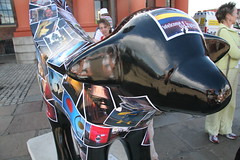
Superlambbanana

Superlambbanana

Another Place

Highland Games - Royal Highland Show

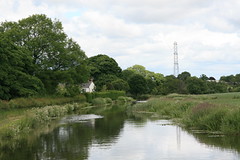
Reflections

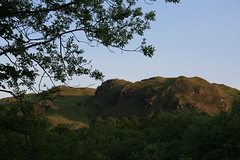
A Beatiful Evening in Rydal

Stagshore Gardens

Technorati Tags: ,

Morning walk tracking on gpsed.com

ReflectionsWell, having been nominated for an Lifestyle Blog award, I suppose I’d better write something about an IT Lifestyle (and yes, this is the last time I’m gong to mention it).

I try and do a walk before I start work on most days, it’s a body fitness thing mainly, but it’s also good for the brain.

Recently I’ve been trying to estimate how much I walk. It’s too easy to short-change myself when I’m busy so I wanted something that I couldn’t kid.

I didn’t want to spend any money, because I’m cheap, so I wanted to use what I already had available. Then one of colleagues pointed out gpsed.com, I’m not sure whether it was Steve or Stu so I’ll credit both of them.

gpsed.com has a free client for the BlackBerry, and I have a Blackberry, so that met the criteria of free. It allows me to upload my data for the whole world to see, making it impossible to cheat myself on how far I’ve actually walked.

So I’ve uploaded some of my walks:

There you go, you all know how far I walk, or do you? I’m a bit dubious about the actual distances, the client on my BlackBerry says that I did 2.7 miles this morning, but gpsed.com says that I did 2.7 km. I’ll have to try and work out which is correct at some point, it makes a big difference.

The other thing I’ve not been able to work out is how to show you all of the walks together on one map. I can see them all together, but there doesn’t appear to be a URL for me to show them to you.

The next thing to work out is how to record how many times I do each walk. Could be a mash-up opportunity I think.

The other thing I’ve done is to start the tracking a short distance from my house, I don’t want the whole world knowing exactly where I live.

Technorati tags: ,

My Tools Summary: June 2008

Stagshore GardensHaving failed to publish a summary in May I thought I would get in slightly early for June:

  • Introduction – why on earth am I doing this.
  • Word Outlining – you really should learn how to write documents this way.
  • Twitter and Twhirl – not sure how to summarise Twitter
  • FeedDemon – my feed reader of choice.
  • Blackberry 8800 – my world in my pocket
  • Windows Live Writer – I blog so I writer
  • iTunes and iPod – a sweet piece of apple
  • Synergy – share that keyboard and mouse to get better returns
  • Jing – screen snapshot wonders


  • My Tools: Jing

    One of the things that I quite often want to do is to show people a snapshot of what I see on my screen. That’s where Jing come in.

    Jing does stills and movies and it does both of them in a wonderfully simple elegant way.

    Jing appears on the screen as a small yellow/orange half-sphere. When you move over it you get to see three options:

    Once you have selected “Capture” you then select the area which Jing automatically helps with by selecting the active window. You don’t have to use this window, but it’s surprising how often that this is exactly what you want to do.

    The next thing to choose is what type of capture you want to do. If you select “Image” then you are prompted as to where you want to put it, if you select “Movie” then you are given a count down of 3-2-1 and then you record the movie.

    Once captured you then decide what you are going to do with your capture. Again there are some nice features here, including the ability to send directly to Flickr and to screencast.com. The things that I am capturing are normally going into presentations for my work so I normally save them to a file.

    Movies are in created in shockwave making them easy to transport and to publish.

    I had forgotten how much easier Jing makes this process until I came to write this post. One of the challenges with showing snapshots of a snapshot tool is that you struggle to use the snapshot tool to do it. Going back to alt-prt scr was a real step back in history for me.

    My Tools: Synergy

    Hi JimmySynergy does a really simple thing, but it does it really well – it allows two PC to share the same mouse and keyboard.

    When I am working from home I stand my work laptop alongside my home PC so that the monitors line up. I then start Synergy as a server on my home PC, and start it as a client on my work laptop.

    Synergy then allow me to use the two systems sat next to each seamlessly switching between them by moving the mouse from one to the other.

    Doing this I get all of the advantages of having multiple displays, I also get to use all of my processing power and I don’t have to worry about which applications I have available on the machine that I happen to be using, because I’m using both of them. I’m running Windows XP on one of the systems and Windows Vista on the other, so I also retain access to two different operating systems, and as it happen, two different versions of Microsoft Office too.

    There are a couple of disadvantages. Because the Synergy is relying upon a network you can sometimes get glitches caused by network latency. Having said that, I’m running across a 802.11g LAN and the glitches are rare. The other disadvantage is that the system relies on some processing, so if the processor is flat out you can get problems. If you have UAC started on Vista Synergy can’t intercept the UAC Shell, but that would be expected, the nice thing about Synergy is that it doesn’t stop you using the real keyboard. These are minor issues though.

    Synergy is free, open source and hasn’t changed since 2006, and still works with Vista. There’s a reasonably active patch community, but I’ve not needed to install any of the, sometimes software that works is best left alone.

    Technorati Tags: ,,

    My Tools: iTunes and iPod

    Fabulous coloursOne of the pieces of technology that quickly and easily became integral to my day-to-day work was my iPod.. Prior to getting my iPod I used a number of other media players; everything from a cheap MP3 player to the media player on my Windows Mobile phone. The integrated iTunes + iPod experience provides a significantly different experience.

    The main benefits for me come in the podcast experience where it’s the simple things that count:

    • Simple selection and synchronisation with iTunes
    • Remembering the last playing position
    • Having podcasts listed in a specific menu structure
    • Good handling of previously played items including synchronisation back to iTunes.

    I don’t just use it for podcasts though, there is a lot of music on there too classical, rock, jazz, instrumental.

    It really becomes a significant tool in a number of scenarios. Here are some examples:

    • Technology information – I subscribe to a number of different technology podcasts. These are a reasonable way of keeping my technology knowledge current. It’s not my primary way, which is RSS, but the change of medium does give me different insights.
    • Quiet space – when I am wanting to focus on something I find that quiet classical music is a great way of removing a lot of distractions. I have a couple of playlists set up.
    • Contemplation and meditation – I try to make meditation a part of every day. There are a couple of podcasts that are produced specifically to help in this process. They provide a great way of slowing down.
    • Gym – Listening to upbeat music makes a difference to my work rate in the gym. I’ll also use this time as a time to consume more podcasts.

    My next investment is likely to a kit for the car to extend my access to podcasts primarily.

    I tend not to use iTunes that much for playing tracks, when I am working from home I’ll use last.fm to provide tracks – primarily classical.

    The update process for iTunes is still a pain in the rear.

    Technorati Tags: ,,

    My Tools: Windows Live Writer

    Newby BridgeEvery one of the blog services provides an adequate online post creation capability – but I prefer to use an application on my PC. I’ve tried the online capabilities, they are adequate, but there is something about them that impacts upon my creativity. I don’t really know what it is, perhaps it’s just the way I have been wired after years of using client based applications, perhaps it’s something more fundamental than that. I’m not a trained psychologist or a creativity expert so it’s just a perception.

    My current preferred client application is Windows Live Writer. I’ve been using WLW all the way through the various beta iterations and onto the current 2008 version.

    It’s interesting to go back to a very simple editor after years of using more complex ones with lots of formatting capabilities. Having the format constrained actually helps my writing, the fact that there is really nothing to fiddle with helps me focus on the words. It’s not dissimilar to the effect of the clean interface of outlining in Word.

    There are lots of plug-ins available, but I only really use one of them and that’s Flickr4Writer. Flickr4Writer, as it’s name suggests, allows the easy insertion of Flickr pictures. I have tags set up on my Flickr sets so that I know which pictures I’ve already used, and which ones I haven’t. It’s a process that isn’t perfect, but it works well enough.

    I also try to add categories and tags to each post so I’ve set up WLW to remind me before it posts. These are both very easy to add with WLW, I keep meaning to go and look for an automatic tagging plug-in but haven’t, so it can’t be that big a deal.

    Some of my most popular posts are ones about the dictionary in WLW, they still get lots of posts even though they are largely redundant, especially from a UK English point of view.

    My Tools: BlackBerry 8800

    Jimmy does BlackBerryYes, I’m a BlackBerry user. Unlike some, though, my BlackBerry is currently my only mobile communication device – phone, email, IM, Twitter – everything.

    I’ve been trying to de-clutter my life, so I’m trying out the integrated communication experience yet again. I don’t know how many times I’ve tried to get to an integrated experience but failed because of some issue or other. I’m hopeful that this time will be different.

    One of the challenges that any integrated communication device has to overcome is that ever changing array of ways that people want to communicate. Having voice and email integrated onto a single device isn’t really that much good anymore, I expect voice, email, IM, browser, twitter, SMS.

    Perhaps surprisingly I don’t yet expect photo or video. I love taking pictures, but I don’t yet use it as part of my day-to-day activity, this means that the 8800 (without a camera) works for me. I know this will change and that video input is really important to many people already. As an example, we went shopping this evening, we got separated from my son, Jonathan, while he went to try some cloths on. Rather than choose there and then, he took photographs of himself in the mirror to look at later, and what did he use for this, the camera on his phone of course. I would never have thought that way, but it was natural to him to use the camera for this purpose.

    I have to say, that as an integrated communication device, the BlackBerry 8800 is the best thing I have used by a long way. That doesn’t mean that there aren’t some niggles, but that’s not why I write these posts, and I’ll take more time to explain them later. Because the BlackBerry has become such a capable communicator it’s difficult to really explain all of the ways that I use it, so here are some examples:

    • The email capabilities are great; now that I have become reasonably efficient with the keyboard. There’s a story behind that, but it can wait for another time. I tend to only use it for short emails, but try to make the short emails meaningful all the same. I find that some others just respond because they think that there is a need to respond, this makes them respond with little meaning.
    • Our internal SameTime system is integrated with the Enterprise Messenger and that is a great experience for such a small form factor. The status code are quite limited though, and that can be a problem (active, away, do not disturb). This capability has been of the most use during meetings when I need to clarify something with someone outside the meeting.
    • I use twitterberry to keep up to speed with twitter. I suspect that 50% of my posts on twitter are from my BlackBerry. I keep getting caught out by this though, because others are reading my posts they ask me questions that I’m not expecting as soon as I walk in the room.
    • The voice dialling capability is my preferred method of dialling, especially when I am in the car. My experience is that it’s very accurate for my contact list which is just short of 100 people, I’m not sure whether that would degrade with more contacts. I love it even more now I have found the lady with the English accent and I no longer have to say “mobil” rather than “mobile”.
    • I don’t use voice dialling in the office, that will definitely get you some funny looks.
    • My preference for mapping is the Google Earth capability. I find that it downloads the images faster than the built in maps.
    • I sometimes use the inbuilt browser, and sometimes use Opera Mini. The difference is in the site that I am wanting to access. Opera Mini gives a really good approximation of the way the page would look on a larger screen. The inbuilt browser gives you a more compact representation.
    • NewsGator Go! acts as a supplement to FeedDemon, but the grazing experience isn’t as good, but much of that is a form factor issue rather than an application issue. The power here is that it’s using the same synchronisation engine.
    • I don’t use to-do at all, not for technical reasons, because I prefer to mange my tasks via bits of dead-tree media.
    • I don’t use many of the media capabilities, because I find that my iPod gives me such a good experience that I’m not sure that I want to operate two different media devices.
    • I regularly use the key on the top with the power symbol on it. I believe that this button is an optional extra on some peoples devices, or at least you would think it was by the number of times they actually turn it off.

    I’ll write some more another time about some of the foibles that annoy.